SoundTrace SDK for Unity
The SoundTrace Unity SDK is a real-time spatial audio plugin that connects Unity meshes, Renderer material slots, audio sources, and listeners to STCoreV2.
Requirements and platforms
| Item | Requirements / support |
|---|---|
| Unity | 2022.3 LTS or newer |
| Supported platforms | Windows x64, macOS, Linux, iOS, Android |
| Unity WebGL | Unsupported. The OnAudioFilterRead-based DSP path is unavailable on Unity WebGL |
Use GPU Backend requests the WebGPU compute provider for reflection and reverb propagation.
Diffraction remains on the CPU. Actual availability depends on the native plugin and device;
SoundTrace uses CPU propagation when GPU initialization fails.
Installation
The SoundTrace Unity SDK package and its installation instructions are supplied through the contracted evaluation or licensing delivery channel. Follow the instructions included with your distribution.
To import the samples, select SoundTrace SDK in Package Manager and choose
Samples > Demo Assets > Import.
Unity Audio settings
- Open
Edit > Project Settings > Audio. - Set
Default Speaker ModetoStereo. - Set
DSP Buffer SizetoBest latency.
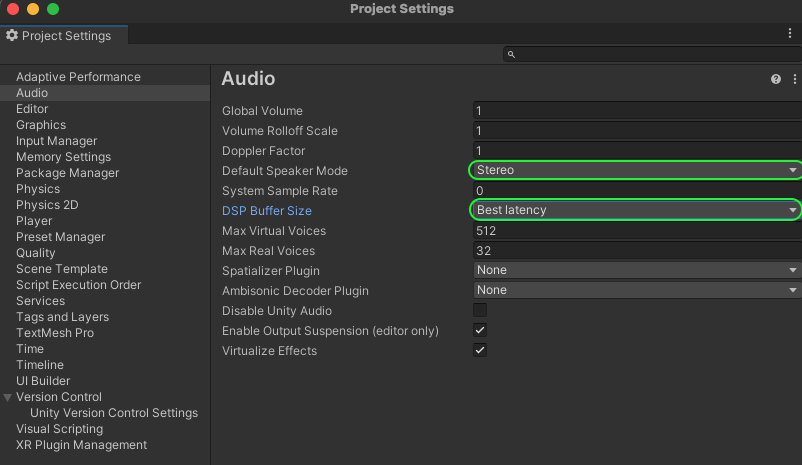
The Manager and Listener Inspectors display a warning when these settings do not match.
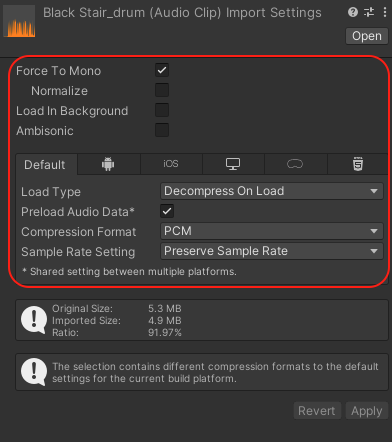
Audio asset import settings — mono
Mono sound sources are assumed, and audio clips are set to the PCM format.
Quick start
- Add
SoundTraceManagerto an empty GameObject. - Add
SoundTraceListenerto the Main Camera. - Add
SoundTraceSourceto an audio-source GameObject and assign a clip to theAudioSourceon the same GameObject. - Add
SoundTraceObjectto each mesh GameObject used as acoustic geometry. - If needed, add
SoundTracePathVisualizerto the same GameObject as the Manager. - Enter Play Mode and check the Console for errors, then verify the audio and paths.
Across all loaded scenes, only one active Manager and one active Path Visualizer may be used.
Multiple Listeners may register, but Source rendering uses the first registered
PrimaryListener.
Component overview
| Component | Role | Required dependency |
|---|---|---|
SoundTraceManager | Manages the runtime, scene, material registration, and propagation backend | One per runtime |
SoundTraceListener | Manages the listener transform, ray quality, output, and HRTF settings | Active Manager |
SoundTraceSource | Spatializes AudioSource output and configures each path type | AudioSource on the same GameObject and an active Listener |
SoundTraceObject | Registers a Mesh and its submesh materials in the acoustic scene | MeshFilter, MeshRenderer |
SoundTraceMaterialPresetLibrary | Material presets and per-band acoustic coefficients | Material Preset Library asset |
SoundTracePathVisualizer | Debug display for valid paths and hit triangles | Same GameObject as the Manager |
SoundTraceManager
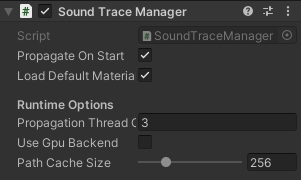
Inspector
| Field | Default | Behavior |
|---|---|---|
bool propagateOnStart | true | Synchronizes the initial scene graph and transforms in Start(), then requests the first propagation pass. |
bool loadDefaultMaterialsOnEnable | true | Registers the bundled Material Preset Library in the native material table during OnEnable(). |
int propagationThreadCount | -1 | Sets the sound engine's execution-thread count for propagation jobs. On native platforms, -1 is configured automatically from the logical-thread count reported by std::thread::hardware_concurrency(), while 0 and 1 run single-threaded. Values of 2 or more use the specified total, including the calling thread. |
bool useGpuBackend | false | Runs propagation on GPU compute shaders instead of job multithreading. |
int pathCacheSize | 256 | Cache-buffer size for generated paths, with a minimum of 0 and a maximum of 1024. Higher values improve the spatial-audio effect but also increase computation. Depending on device performance, we recommend starting below the default value of 256. |
Public methods
| Method | Behavior |
|---|---|
ResetMotionState() | Resets motion history for all registered listeners and sources after a teleport, respawn, or scene transition. |
Public properties
| Property | Type / access | Description |
|---|---|---|
Instance | static SoundTraceManager / get; private set; | Singleton Manager used across all loaded scenes, or null when none is enabled. |
DefaultMaterialsLoaded | int / get; private set; | Number of bundled materials registered automatically in OnEnable(). It is 0 when automatic loading is disabled or the asset is missing. |
Scene | SoundScene / get; private set; | Low-level scene owned by the Manager. It is null while inactive or after initialization failure. |
PrimaryListener | SoundTraceListener / get | First registered Listener used by Source rendering, or null when no Listener is registered. |
ListenerCount | int / get | Number of Listeners currently registered with the Manager. |
SourceCount | int / get | Number of Sources currently registered with the Manager. |
ObjectCount | int / get | Number of Objects currently registered with the Manager. |
LastValidPathCount | int / get; private set; | Valid-path count from the most recently completed propagation result. It is 0 when propagation cannot run. |
LastNativeError | string / get; private set; | Most recent scene-graph or propagation error; an empty string means no current error. |
PropagationThreadCount | int / get | Configured propagation thread count. -1 selects automatic configuration; this property does not report the actual count selected automatically. |
IsGpuPropagate | bool / get; private set; | Whether exaPropagatorInitGpu() succeeded and activated the GPU propagation provider. |
GpuBackendStatus | string / get; private set; | GPU backend initialization result: GPU active or CPU fallback (<ExaResult>): <error>. |
PathCacheSize | int / get | Cache-buffer size for generated paths. |
SoundTraceListener
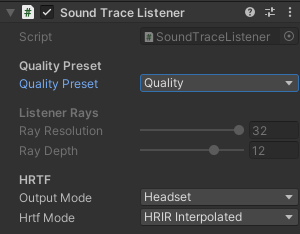
Add this component to the Main Camera in most projects.
Inspector
| Field | Default | Range/options |
|---|---|---|
Quality Preset | Fast | Custom, Fast, Middle, Quality |
Ray Resolution | 16 | 1..32; the same value is applied to width and height |
Ray Depth | 4 | 1..16 |
Output Mode | Headset | Headset, Speaker |
HRTF | HRIR Interpolated | The three modes below |
Delay Interpolation | From preset | Linear, Cubic Lagrange, or Lagrange 6. Interpolates delay changes during motion; editable in Custom. |
Selecting Fast, Middle, or Quality applies the ray values and associated rendering-quality
settings together, and disables the ray fields in the Inspector. Select Custom before editing
the values directly. Switching from a preset back to Custom preserves the last applied values.
| Preset | Ray Resolution | Ray Depth | Recommended starting point |
|---|---|---|---|
Custom | Stored value | Stored value | Manual tuning |
Fast | 16 | 4 | Mobile and projects with many sources |
Middle | 24 | 8 | General games and desktop |
Quality | 32 | 12 | Apps where audio is a major focus and other workloads are light |
HRTF and output mode
| Mode | Required asset | Description |
|---|---|---|
Band8 | None | Lightweight mode that does not load an external HRTF table |
Hrir | KU100_convolution.bytes | HRIR mode |
HRIR Interpolated | KU100_convolution.bytes | Applies interpolation to HRIR mode to improve directional perception. |
Assets are loaded from Runtime/Resources/SoundTrace/HRTF/. If a required asset is missing or
empty, Listener initialization fails; SoundTrace does not switch to another mode automatically.
Public methods
| Method | Behavior |
|---|---|
ResetMotionState() | Uses the current Transform as the motion origin and resets velocity. Call immediately after teleporting or respawning. |
Public properties
| Property | Type / access | Description |
|---|---|---|
Core | SoundListenerCore / read-only | Low-level listener API object. null before initialization or when disabled. |
AudioSampleRate | int / read-only | Audio sample rate applied to the listener, in Hz. |
AudioInputSampleCount | int / read-only | Input audio block sample count applied to the listener. |
AudioOutputChannels | int / read-only | Output channel count applied to the listener. |
SoundTraceSource
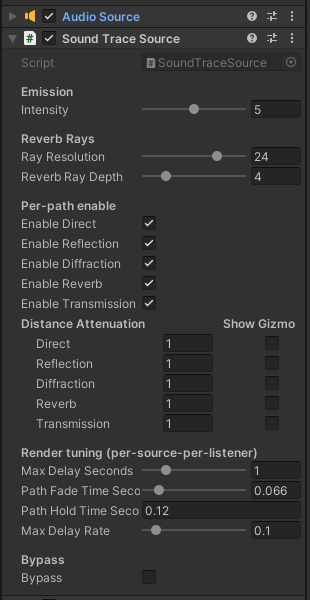
SoundTraceSource processes the output of the AudioSource on the same GameObject. When
enabled, it sets AudioSource.spatialBlend and AudioSource.dopplerLevel to 0 so SoundTrace
handles spatialization and Doppler.
Inspector
| Field | Default | Behavior |
|---|---|---|
Intensity | 1 | Source emission intensity in the 0..10 range. |
Ray Resolution | 24 | Applies the same horizontal and vertical resolution to reverb rays. Range: 1..32. |
Reverb Ray Depth | 4 | Maximum reflection depth for reverb rays. Range: 1..16. |
Enable Direct | true | Enables the Direct path. |
Enable Reflection | true | Enables the Reflection path. |
Enable Diffraction | true | Enables the Diffraction path. |
Enable Reverb | true | Enables the Reverb path. |
Enable Transmission | true | Enables the Transmission path. |
Direct Attenuation | 1.0 | Distance attenuation for the Direct path. Higher values sound quieter at the same distance. Range: 0.5..1.5. |
Reflection Attenuation | 1.0 | Distance attenuation for the Reflection path. Higher values sound quieter at the same distance. Range: 0.5..1.5. |
Diffraction Attenuation | 1.0 | Distance attenuation for the Diffraction path. Higher values sound quieter at the same distance. Range: 0.5..1.5. |
Reverb Attenuation | 1.0 | Distance attenuation for the Reverb path. Higher values sound quieter at the same distance. Range: 0.5..1.5. |
Transmission Attenuation | 1.0 | Distance attenuation for the Transmission path. Higher values sound quieter at the same distance. Range: 0.5..1.5. |
Max Delay Seconds | 1.0 s | Maximum propagation delay retained by the Source renderer. Longer delays use more memory. Range: 0.01..5 s. |
Path Fade Time Seconds | 0.066 s | Fade time used when a path enters or leaves the renderer. Range: 0.001..0.5 s. |
Path Hold Time Seconds | 0.120 s | Time a missing non-direct path is retained before fading starts. 0 disables holding. |
Max Delay Rate | 0.1 | Maximum delay change allowed per sample. Range: 0.001..0.999. |
Bypass | false | Skips SoundTrace spatial rendering and passes through the original AudioSource output. |
A larger Distance Attenuation value makes the corresponding path type roll off faster with
distance. Show Gizmo displays the reach of Direct, Reflection, Diffraction, Reverb, and
Transmission independently in the Scene view.
Render Tuning applies to a source-listener pair. Path Hold = 0 disables path holding.
Public methods
| Method | Behavior |
|---|---|
SetBypass(bool enabled) | When true, skips SoundTrace spatial rendering and passes through the original AudioSource output. When false, applies SoundTrace rendering again. |
ResetMotionState() | Re-seeds motion from the current Transform and publishes zero velocity to prevent a Doppler spike after a teleport or respawn. |
To synchronize multiple AudioSource instances, call PlayScheduled() against the same
AudioSettings.dspTime reference.
Public properties
| Property | Type / access | Description |
|---|---|---|
Core | SoundSourceCore / read-only | Low-level source API object. null before initialization or when disabled. |
NativeSourceId | int / read-only | Registered native source ID. -1 before registration or after removal. |
Bypass | bool / read/write | true passes through the original AudioSource output. Controls the same setting as SetBypass(). |
SoundTraceObject
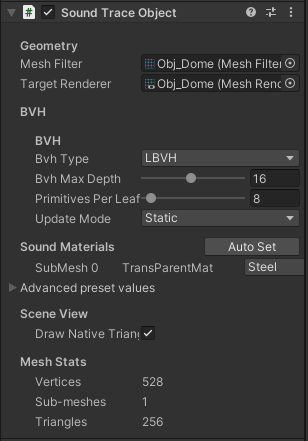
SoundTraceObject registers MeshFilter.sharedMesh and the Renderer submesh material slots.
Enable Read/Write Enabled in Import Settings because builds must read the mesh data.
Inspector
| Field / button | Description |
|---|---|
Mesh Filter | Selects the mesh to register as acoustic geometry. |
Target Renderer | Selects the Renderer used to read render materials for each submesh. |
Sound Materials | Selects an acoustic material preset for each submesh. |
Auto Set | Matches presets automatically using Renderer material names. |
Add To Child Meshes | Adds SoundTraceObject to child mesh GameObjects. |
Draw Native Triangles | Displays native mesh triangles in the Scene View. |
Geometry and BVH
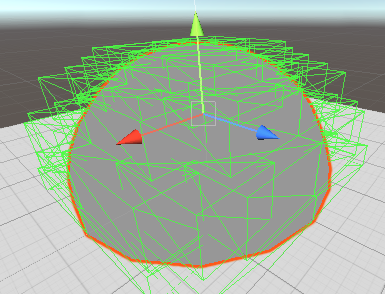
| Field | Default | Description |
|---|---|---|
BVH Type | LBVH_SIMD8 | HKDTree, LBVH, LBVH_SIMD4, LBVH_SIMD8, LBVH_SIMD16 |
BVH Max Depth | 12 | 1..32 |
Primitives Per Leaf | 16 | 1..128 |
Update Mode | Static | Static, Dynamic, Refit, Rebuild |
BVH Type
| BVH Type | Description |
|---|---|
HKDTree | Uses KD-partition traversal. It supports Refit, but switches to BVH-style fallback traversal after a Refit. The GPU backend does not support it. |
LBVH | Uses Morton codes, rebuilds faster than HKDTree, and supports Refit. After uploading vertices through the low-level API, it can be refit for SkinnedMesh or procedural-mesh deformation. The scalar format does not support the GPU backend. |
LBVH_SIMD4 | Processes LBVH leaf intersections in SIMD batches of 4. Refit supported and GPU Backend supported. |
LBVH_SIMD8 | Processes LBVH leaf intersections in SIMD batches of 8. This is the current default. Refit supported and GPU Backend supported. |
LBVH_SIMD16 | Processes LBVH leaf intersections in SIMD batches of 16. Refit supported and GPU Backend supported. |
The Inspector displays a warning when HKDTree or scalar LBVH is selected in a scene that requests the GPU backend.
Update Mode
| Update Mode | STCoreV2 update policy | Meaning |
|---|---|---|
Static | EXA_OBJECT_UPDATE_STATIC (0) | No runtime TLAS/BLAS updates. Use it for level geometry that does not move. |
Refit | EXA_OBJECT_UPDATE_REFIT (1) | The deformation policy: it refits the mesh BLAS and refreshes the TLAS bounds. Target it at skinned and procedural meshes whose topology stays fixed. |
Rebuild | EXA_OBJECT_UPDATE_REBUILD (2) | Rebuilds the BVH. Use it for geometry whose topology changes. |
Dynamic | EXA_OBJECT_UPDATE_DYNAMIC (3) | Transform-only: refreshes the TLAS instance. |
Refit and vertex upload
Refit is STCoreV2's update policy for vertex deformation (skinned animation). The core
does not decide on its own when vertices are uploaded: a mesh update is the
exaMeshUpdateVertices → exaMeshRefit two-call protocol, and the object's Refit setting is
the policy switch that makes the result reach the BLAS and the TLAS bounds. The host SDK owns
the upload.
The Unity SoundTraceObject MonoBehaviour currently syncs only the Transform; it never calls the
vertex upload. It requires MeshFilter/MeshRenderer, so it does not bind a
SkinnedMeshRenderer directly, and the mesh geometry is snapshotted once in OnEnable. To make
skinned or procedural deformation audible in Unity, set Update Mode to Refit and push the
vertices yourself through MeshCore, as shown below. The UE plugin's
SoundTracingObjectComponent performs this upload automatically for skeletal meshes.
using Exarion.SoundTrace;
using Exarion.SoundTrace.Core;
using Exarion.SoundTrace.Native;
using UnityEngine;

[RequireComponent(typeof(SoundTraceObject))]
public sealed class SoundTraceSkinnedRefit : MonoBehaviour
{
    [SerializeField] private SkinnedMeshRenderer skin;

    private SoundTraceObject _object;
    private Mesh _baked;
    private ExaVec3f[] _vertices;

    private void Awake()
    {
        _object = GetComponent<SoundTraceObject>();
        _baked = new Mesh();
    }

    private void LateUpdate()
    {
        SoundMeshCore mesh = _object.MeshCore;
        if (mesh == null || !mesh.IsValid)
            return;

        // 1) Bake the current pose and read the vertices. This is the Unity Mesh
        //    API, so it must happen on the main thread.
        skin.BakeMesh(_baked);
        Vector3[] baked = _baked.vertices;
        if (_vertices == null || _vertices.Length != baked.Length)
            _vertices = new ExaVec3f[baked.Length];
        for (int i = 0; i < baked.Length; ++i)
            _vertices[i] = new ExaVec3f(baked[i].x, baked[i].y, baked[i].z);

        // 2) Run the upload and the refit as the two-call protocol on the control thread.
        ExaVec3f[] vertices = _vertices;
        SoundTraceControlThread.Invoke(() =>
        {
            if (mesh.UpdateVertices(vertices))
                mesh.Refit();
        });
    }

    private void OnDestroy()
    {
        if (_baked != null)
            Destroy(_baked);
    }
}
Things to watch for:
- The vertex count must exactly match the count the mesh was built with.
exaMeshUpdateVerticesrejects a mismatch withEXA_ERR_INVALID_ARG. Put theSkinnedMeshRendererbind-pose mesh intoMeshFilter.sharedMeshso the counts line up. - Vertices are uploaded in mesh local space.
SoundTraceObjectsyncs the object's position, rotation, and scale separately, so bake without applying the scale. - The native mesh is refcount-shared by
SoundTraceMeshCache, keyed on the Mesh asset, the material slots, and the BVH settings. When several objects use the same combination, refitting one deforms all of them. Give each object its own Mesh instance if they must deform independently. SoundTraceControlThread.Invokeis a blocking call. Calling it every frame for many objects stalls the main thread behind the control thread's propagation frame, so keep the set of refit objects small.- Use a refit-capable
LBVHfamily BVH Type.HKDTreealso refits, but traversal switches to the BVH-style fallback afterwards. - A topology change — different triangle indices — cannot be handled by a refit. Rebuild through
MeshCore.SetData(...)and setUpdate ModetoRebuild.
Public methods
Auto Set matches Renderer material names against the bundled presets. If an imported model
root has no mesh and its children own the geometry, use Add To Child Meshes.
| Method | Behavior |
|---|---|
AutoSetMaterialSlots() | Iterates over every submesh, matches the Renderer material name against the bundled presets, and refreshes the slot configuration. |
GetMaterialPresetIndex(int slotIndex) | Returns the preset index for the specified slot. Returns 0 when no slots exist or the slot index is invalid. |
GetPresetName(int slotIndex) | Returns the display name of the preset assigned to the specified slot. Returns Concrete when the preset cannot be found. |
SetMaterialPresetIndex(int slotIndex, int presetIndex) | Changes one slot's preset. Clamps presetIndex to at least 0 and returns false when the slot index is invalid. |
SetMaterialPresetForAllSlots(int presetIndex) | Applies one preset to every slot. Clamps presetIndex to at least 0 and returns false when there are no slots to update. |
GetNativeMaterialIndices() | Returns the per-submesh preset indices in the array format used to register a native mesh. Missing or empty slots use 0. |
GetTriangleCount() | Sums the index counts of all submeshes and returns the triangle count. Returns 0 when no mesh is assigned. |
static IsGpuCompatibleBvhType(BvhType value) | Returns true for LBVH_SIMD4, LBVH_SIMD8, and LBVH_SIMD16. |
Public properties
| Property | Type / access | Description |
|---|---|---|
ObjectCore | SoundObjectCore / read-only | Registered low-level object. null before initialization or when disabled. |
MeshCore | SoundMeshCore / read-only | Shared low-level mesh. null if no mesh is registered. |
NativeObjectId | int / read-only | Native object ID; -1 when unregistered. |
NativeMeshId | int / read-only | Native mesh ID; -1 when unregistered. |
SlotCount | int / read-only | Number of acoustic material slots. |
SharedMesh | Mesh / read-only | Shared mesh referenced by MeshFilter. null if no MeshFilter is assigned. |
IsReadyForPropagation | bool / read-only | Whether scene registration is complete and both the object and mesh are valid. |
EditorBvhType | BvhType / read-only, Editor only | Validated BVH type. |
EditorBvhMaxDepth | int / read-only, Editor only | BVH maximum depth clamped to 1..32. |
EditorPrimitivesPerLeaf | int / read-only, Editor only | Primitives per leaf clamped to 1..128. |
Acoustic materials and Transmission
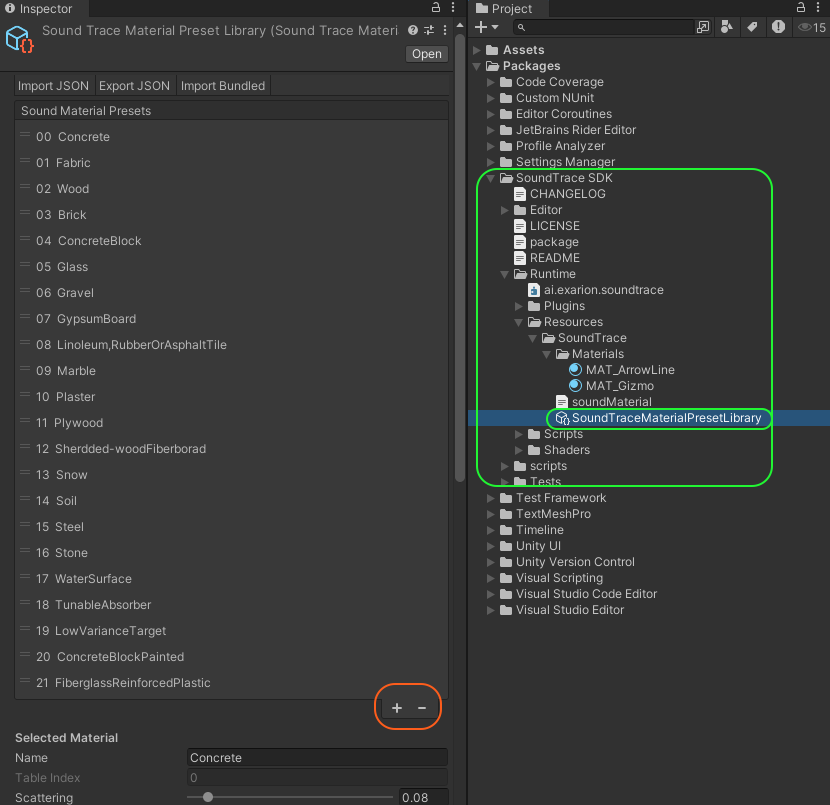
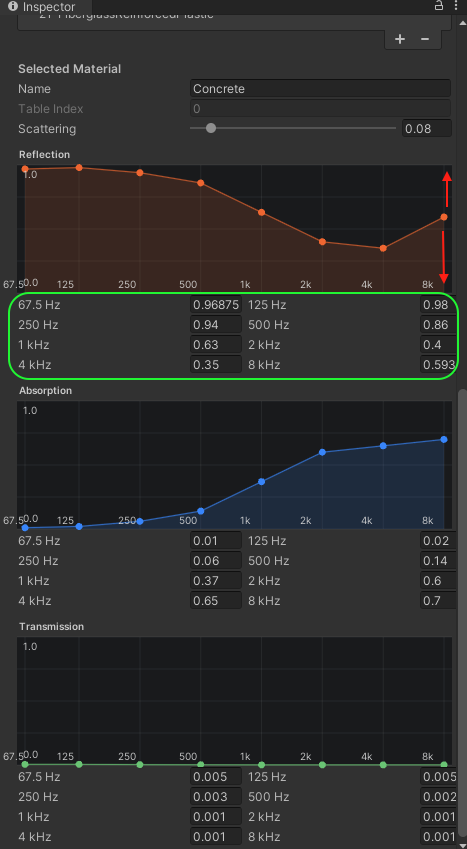
Inspector
The default authoring asset is
Runtime/Resources/SoundTrace/SoundTraceMaterialPresetLibrary.asset.
Use SoundTrace > Material Preset Library to:
- Add, remove, and reorder presets
- Import or export
soundMaterial.json, or re-import the bundled JSON - Edit Scattering and the 8-band Reflection, Absorption, and Transmission graphs
- Select the
Transmission Model
The frequency-band centers are 67.5, 125, 250, 500, 1000, 2000, 4000, and
8000 Hz. Material order and table indices must match.
| Field | Description |
|---|---|
Presets | Acoustic material list. Add, remove, and reorder presets here. |
Display Name | Name shown in the object's material selection list. |
Material Index | Index used in the native material table. |
Scattering | 0..1. Controls the balance between specular reflection and scattering. |
Reflection, Absorption, Transmission | Reflection, absorption, and transmission energy coefficients for eight frequency bands. Each value is in 0..1. |
Transmission Model | Selects Surface or Solid Distance. |
Thickness to -30 dB (m) | Per-band attenuation reference distance for Solid Distance. |
Transmission Model
| Model | Input | Geometry requirement |
|---|---|---|
Surface | Per-band transmitted-energy coefficient remaining after crossing a surface, 0..1 | May be used with open faces and thin surfaces |
Solid Distance | Per-band material reference distance (m) at which transmitted energy reaches -30 dB; 0 or greater | Requires a closed volume with consistent face winding |
The Solid Distance input is not the actual thickness of the object. At runtime, attenuation is
applied from the distance actually traveled through the geometry. Changing the model does not
calculate the eight values automatically. Enter a verified value for every band and do not leave
them at the default 0.
In JSON, the absence of transmissionDistanceToMinus30DbMeters selects Surface; its presence
as exactly eight finite, non-negative values selects Solid Distance. When exporting Surface,
the field is omitted instead of being written as null or an empty array.
Public methods
These APIs belong to SoundTraceMaterialPresetLibrary.
| Method | Behavior |
|---|---|
static LoadDefault() | Loads the default library. Creates it from bundled JSON if the asset is missing or empty. |
GetPreset(int index) | Clamps the index to the valid range and returns a preset. Returns null for an empty list. |
GetPresetNames() | Returns an array of preset names for selection lists. |
FindBestPresetIndex(Material renderMaterial) | Finds a preset matching the render material name. |
FindPresetIndex(string token, int fallback) | Finds a preset whose name contains the token, or uses the fallback index. |
RegisterAll(MaterialTable table) | Registers all presets in the native material table and returns the number registered. |
ReplaceWithJson(string json) | Replaces presets from JSON. Throws ArgumentException if no valid material entries exist. |
ToJson() | Returns the current library in soundMaterial.json format. |
Normalize() | Normalizes preset indices, band arrays, and coefficient ranges. |
static GetFrequencyBandCenterHz(int index) | Returns the center frequency of the specified band, in Hz. |
Public properties
| Property | Type / access | Description |
|---|---|---|
Presets | IReadOnlyList<SoundTraceMaterialPreset> / read-only | Presets stored in the library. |
Count | int / read-only | Number of presets. |
FrequencyBandCount | static int / read-only | Number of frequency bands: 8. |
SoundTracePathVisualizer
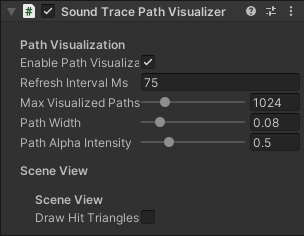
Add one to the same GameObject as the Manager.
Inspector
| Inspector field | Default | Description |
|---|---|---|
Enable Path Visualization | Enabled | Controls whether the path mesh is displayed. |
Refresh Interval Ms | 50 | Minimum interval between visualization-mesh rebuilds. Does not affect the acoustic propagation interval. |
Max Visualized Paths | 1024 | Maximum number of paths to display. |
Path Width | 0.08 | Line width. |
Path Alpha Intensity | 0.5 | Display intensity. |
Path Depth Mode | Always On Top | Depth Test checks geometry depth; Always On Top draws paths in front. |
Sorting Layer Name | Default | Sorting Layer for the path mesh. |
Sorting Order | 10 | Render order within the Sorting Layer. |
Draw Hit Triangles | Disabled | Displays hit triangles in the Scene view. |
Direct, Reflection, Diffraction, Reverb, and Transmission use distinct path colors. This component is for debugging; disable it during performance measurements and in release builds.
Public methods
| Method | Behavior |
|---|---|
Render(SoundTraceManager manager, bool force = false) | Updates the display mesh from the latest valid paths. force = true bypasses the refresh interval. Clears the display if visualization is disabled or the Manager is invalid. |
Clear() | Clears the path mesh, hides the renderer, and resets path and segment counts. |
Public properties
| Property | Type / access | Description |
|---|---|---|
Active | static SoundTracePathVisualizer / read-only | Currently active visualizer component, or null if none exists. |
PathVisualizationEnabled | bool / read-only | Whether path visualization is enabled. |
RefreshIntervalMs | float / read-only | Minimum visualization refresh interval in milliseconds. |
MaxVisualizedPaths | int / read-only | Maximum number of paths to display. |
PathWidth | float / read-only | Path line width. |
PathAlphaIntensity | float / read-only | Path display intensity. |
ActivePathCount | int / read-only | Valid path count read during the latest visualization update. |
ActiveSegmentCount | int / read-only | Number of segments forming the actual display mesh. |
PoolSize | int / read-only | Returns the same segment count as ActiveSegmentCount. |
DrawHitTrianglesInSceneView | bool / read-only, Editor only | Whether hit triangles are displayed in the Scene View. |
Sample demos
ST_SampleScene01
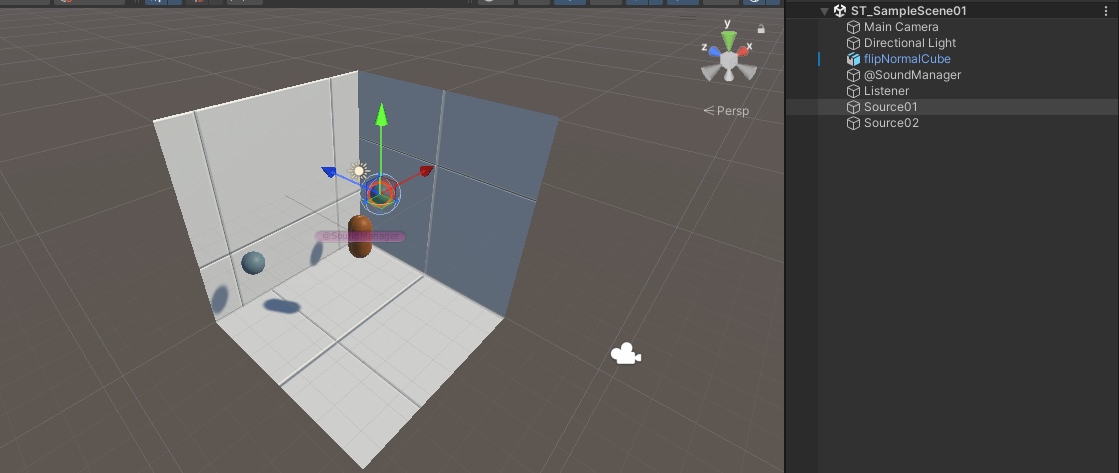
Demonstrates a basic room, source, listener, geometry, material presets, and path visualization.
ST_SampleScene02
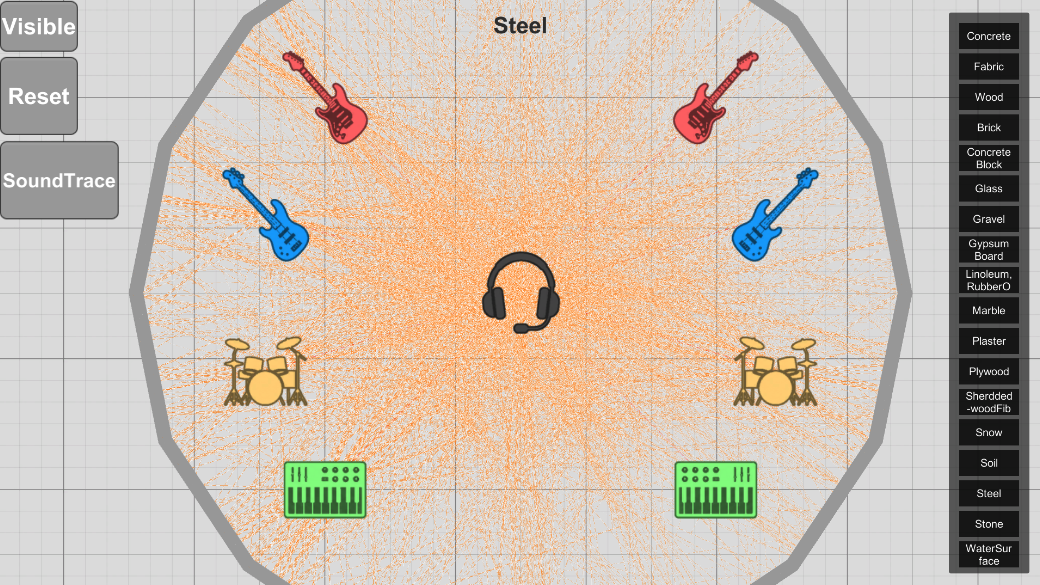
Demonstrates source/listener movement, material-preset changes, and comparison between the original Unity audio and SoundTrace output.
ST_SampleScene03
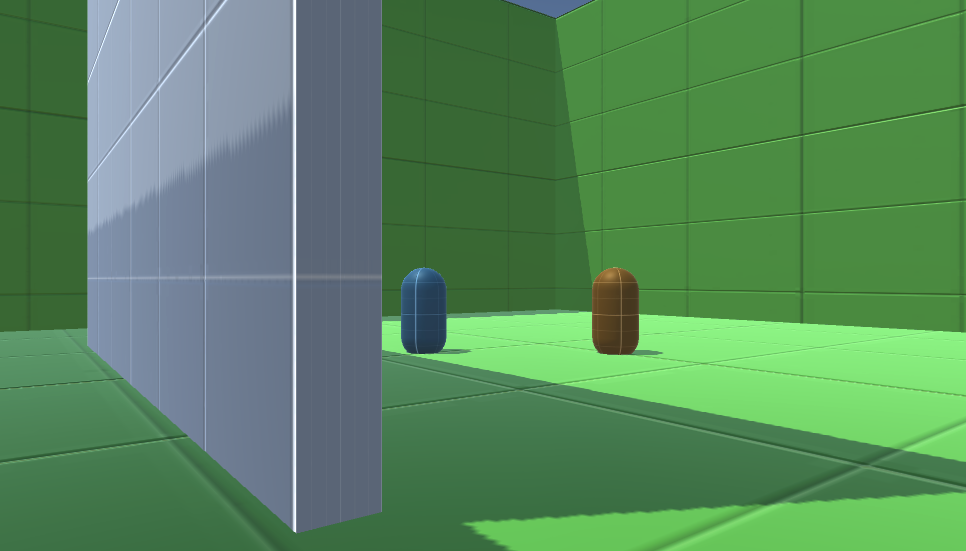
Demonstrates multiple sources in a large space, wall occlusion, HRTF directionality while moving, and room response.
Troubleshooting tips
| Symptom | Check |
|---|---|
| No audio output | Check the first Manager initialization error in the Console, Stereo/Best latency, the AudioSource clip, and the presence of a Manager and Listener |
| Source/Listener/Object reports that it requires a Manager | Find the earlier Failed to initialize SoundTraceManager cause instead of a later cascade error |
| HRTF initialization fails | Check that the Resources asset for the selected mode exists and is not empty |
| Geometry is ignored | Check Read/Write Enabled, MeshFilter/MeshRenderer, child-mesh placement, and registration state |
| A deformed mesh does not update at runtime | Update Mode alone does not upload vertices or topology; use a separate low-level geometry update path |
| GPU is not active | Check GpuBackendStatus, the Console fallback reason, and the Object SIMD BVH selection |
| Pitch jumps after a teleport | Call ResetMotionState() immediately after changing the Transform |
| Performance is insufficient | Step down Quality → Middle → Fast, reduce the path cache buffer, then disable the path visualizer |
| Multiple sources produce a comb-filtered sound | Call PlayScheduled() against the same AudioSettings.dspTime |